Laos eSIM Not Working? Complete Troubleshooting Guide (2026)
Published Updated
Most Laos eSIM problems come down to three things: you can’t scan a QR code that’s sitting on the same phone, your phone is still using your home SIM for data, or you are somewhere with no coverage. Our Laos eSIM activates automatically on Unitel: there is nothing to dial and no data roaming to switch on. This guide fixes all three, plus everything else we see in support.
Start with the triage below. It should take you to the right section in under thirty seconds.
Quick triage
| What's happening | Go to |
|---|---|
| I can't scan the QR code because it's on this phone | Installing from the same phone |
| The eSIM installed but I have no data | Installed but no service |
| I've landed in Laos and nothing is working | On arrival in Laos |
| I get "unable to add cellular plan" or a similar error | Installation errors |
| I have signal in town but nothing in the countryside | Coverage in remote areas |
Before anything else: don't scan twice
eSIM activation codes are single use. Once a profile installs on a device, that code is spent. It does not matter whether the installation completed successfully or you cancelled it halfway through.If something goes wrong, do not repeatedly scan the QR code hoping it will take. Work through the steps below instead. If you have already burned the code, contact us and we will look at your order.
Installing from the same phone as the QR code
This is the single most common issue we see, and it is not a fault. You bought the eSIM on your phone, the QR code arrived in your email on that same phone, and now you are trying to point the camera at a code displayed on the screen you are looking at. That obviously will not work.Three ways around it, in order of speed.
Method 1: install from a saved image
Most modern phones let you pick the QR code from your photo library instead of using the camera.- Open the confirmation email and save the QR code image to your Photos or Gallery. On iPhone, press and hold the image and choose Save to Photos. On Android, press and hold and choose Download image.
- Go to your eSIM setup screen. On iPhone: Settings > Cellular > Add eSIM. On most Android phones: Settings > Network & Internet > SIMs > Add eSIM.
- When the camera opens, look for an option along the lines of Choose photo, Select from gallery, or Use image.
- Pick the saved QR code and follow the prompts.
Method 2: open the email on another screen
Open the confirmation email on a laptop, a tablet or a friend's phone, then scan the QR code from that screen with your phone. This is the quickest fix when your phone can't pick the code from your photos.Method 3: enter the details manually
This one never fails. It just takes a minute of typing.Your confirmation email contains two values alongside the QR code: an SM-DP+ address (a server address that looks like a web address) and an activation code (a long string of characters). These are unique to your order.
On iPhone:
- Go to Settings > Cellular > Add eSIM
- Tap Use QR Code, then Enter Details Manually at the bottom of the screen
- Enter the SM-DP+ address and activation code exactly as they appear in your email
- Tap Next and follow the prompts
- Go to Settings > Network & Internet > SIMs > Add eSIM
- On the scanning screen, look for Need help? then Enter it manually. On Samsung this is usually Enter activation code.
- Enter the details from your email
Some Android phones expect the whole string in the format LPA:1$address$code. If your code already starts with LPA:, do not add it again.
Landed in Laos? Switch your data line
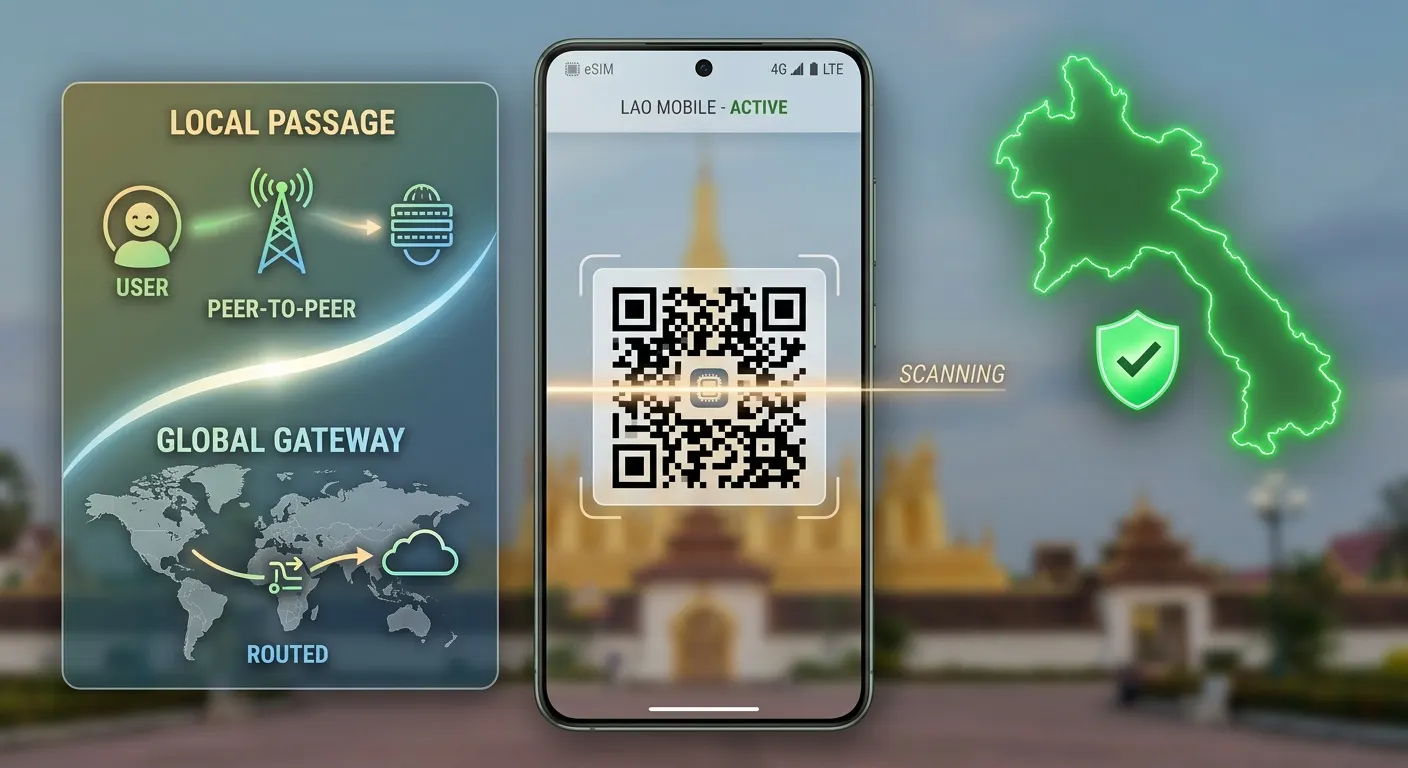
Our Laos eSIM runs on Unitel and activates automatically: data works the moment it connects to Unitel. There is nothing to dial and no data roaming to switch on. The validity starts at that first connection, not when you buy or install the eSIM, so you can install it at home on solid Wi-Fi.What you do need to do: make the Laos eSIM your mobile-data line. If your phone is still using your home SIM or a previous eSIM for data, it will not switch over by itself. See step 1 below.
Other travel eSIMs that roam onto a Lao network often do need data roaming switched on. If you bought yours elsewhere, follow your seller’s instructions.
Don’t have an eSIM yet? Our Unitel eSIMs install in minutes and start counting when they first connect in Laos. Browse Laos eSIM plans →
Installed but no service
The profile is on your phone but you have no data. Work through these in order.1. Is the eSIM set as your data line?
Installing an eSIM does not automatically make it the line your phone uses for data. This is the most common cause of "installed but no internet".iPhone: Settings > Cellular > Cellular Data > choose your Laos eSIM Android: Settings > Network & Internet > SIMs > Mobile data > choose your Laos eSIM
2. Is the eSIM line switched on?
On dual-SIM phones each line can be turned on or off. Check that the Laos eSIM line is on in the same menu.3. Are you in an area with coverage?
If it worked in town and stopped in the countryside, see coverage in remote areas.4. Toggle airplane mode
Turn airplane mode on, wait ten seconds, turn it off. This forces your phone to search for networks again. Sounds trivial, fixes a surprising number of cases.5. Restart the phone
A full restart after installing an eSIM resolves cases where the profile installed but never properly attached to the network. Samsung phones in particular often need this.6. Check network selection
If your phone is set to select networks manually, it may be sitting on the wrong one. Set network selection back to automatic, or manually choose Unitel.7. Still nothing? Check your APN manually
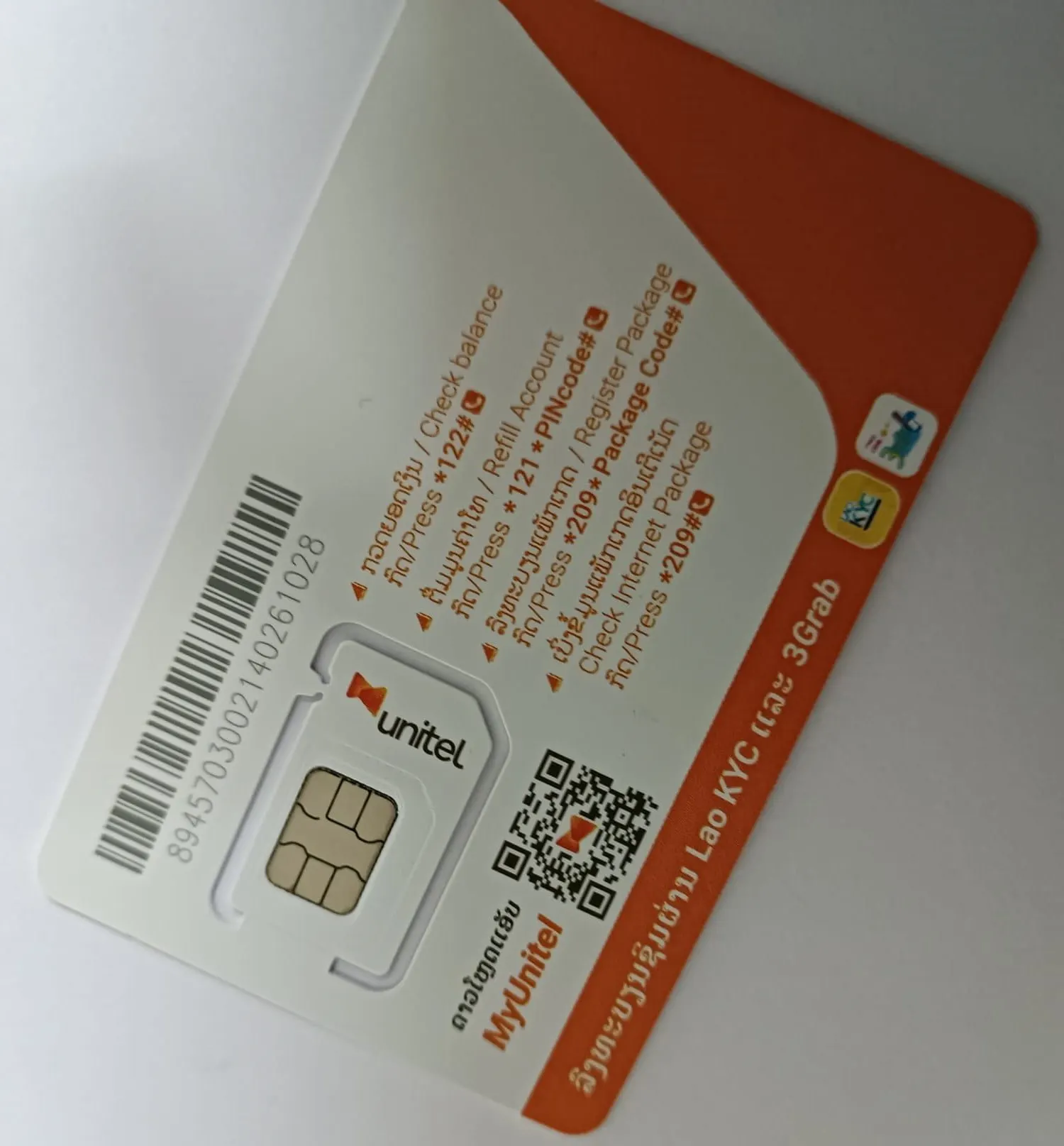
Rare on an eSIM, since the profile normally carries its own configuration, but worth checking if everything above is correct. The APN differs by operator: Unitel (unitel3g), Lao Telecom and TPlus (ltcnet), ETL (etlnet).
Installation errors
"Unable to add cellular plan" or "Cannot complete request"
Usually one of three things. You need a working internet connection to install an eSIM, so make sure you are on Wi-Fi. Check the SM-DP+ address and activation code for typos or stray spaces. And confirm the code has not already been used on another device."This code is no longer valid"
The activation code has been used. This happens if the profile was already installed once, including a cancelled attempt. Contact us with your order number.Your phone does not offer an eSIM option at all
Two possibilities. Either the handset does not support eSIM, or it does but is carrier locked. A locked phone will often hide eSIM settings entirely, even on a model that supports it. Check with the carrier you bought the phone from.If you bought the wrong country
Check your confirmation email now, before you install. eSIM plans are country specific, and a plan for a neighbouring country will not work in Laos.We cannot refund or exchange a plan purchased for the wrong destination. This is standard across the eSIM industry and comes down to how the profiles are provisioned. Once a plan is issued against a specific network, it cannot be reassigned.
If you are travelling to Laos and several neighbouring countries on the same trip, tell us before you buy and we will point you to the right option.
Coverage in remote areas
Our eSIMs run on Unitel, which has the widest rural footprint of the four operators in Laos. That said, no network reaches everywhere, and it is worth knowing where the limits are.Strong 4G across Vientiane, Luang Prabang, Vang Vieng, Pakse and the main road corridors between them. Workable coverage in the 4000 Islands around the main island clusters. Patchy to non-existent in the far north around Phongsali, in the mountains generally, on multi-day treks, and in cave systems.
If your itinerary includes serious trekking or remote northern provinces, download offline maps and anything else you need before you leave a town with signal. That is good practice regardless of which operator you are on.
Heading off the main routes? Our eSIMs run on Unitel, the widest rural network in Laos. See plans and coverage →
Still stuck?
Send us your order number and describe what you are seeing, including any error message word for word and your phone model. That gets you a useful answer faster than a general description.For a SIM card bought in Laos, your home SIM on roaming, or more remote-area guidance, see our full guide: eSIM or SIM Card Not Working in Laos? Fixes by Symptom.
Frequently asked questions
Can I install the eSIM before I travel?
Yes, and we recommend it. Install at home on Wi-Fi. When you land in Laos, data starts automatically: just make sure the Laos eSIM is your mobile-data line.Does installing the eSIM start my data allowance?
No. Your allowance and validity period start when the eSIM first connects to a network in Laos.Can I keep my home number active?
Yes. The eSIM sits alongside your existing SIM. Keep your home line for calls and messages, set the Laos eSIM as your data line, and turn off data roaming on your home line to avoid charges.Can I move the eSIM to a different phone?
No. The activation code is single use and the profile installs to one device.Can I top up when my package runs out?
Yes. Get in touch and we will sort it out.What if my QR code will not scan?
Save the image and select it from your photo library, open the email on another screen and scan it from there, or enter the SM-DP+ address and activation code manually. All three are covered above.For a deeper look at how local eSIMs compare to regional roaming plans — including privacy, latency, and local app access — read our full guide: How to Choose an eSIM for Laos: Local vs Regional Roaming (2026).
Need mobile data sorted for your Laos trip? Our Laos eSIM runs on the local Unitel network, from $6.90.